Building your own computer sounds intimidating. I get it. There are a lot of parts, a lot of model numbers, and a lot of folks online arguing about which ones are best.
But here’s the thing. Whether it’s for gaming, creative projects, school, work or just everyday browsing, there are a lot of great deals out there to get you started. And once you know what each part does, putting together the right list gets a lot easier.
So here’s a plain-English walk through every part you’ll need, what to look for, and how an everyday build and a performance build are different.
Start with what the computer is for
Before you shop for a single part, decide what the computer needs to do.
- An everyday build is for school, work and lighter technical use like coding or spreadsheets. It handles documents, research, video calls, streaming and lots of browser tabs. It doesn’t need much power, so you can keep it simple and affordable.
- A performance build is for gaming and heavier creative work like video editing, 3D and music production. It needs a lot more muscle. For gaming, most of the money goes to the graphics card. Creative work leans harder on the processor and memory, and many video and 3D apps use the graphics card too.
Most of us land somewhere in between. Just know which direction you’re leaning… because it changes almost every choice below.
Processor (CPU)
What it does: The processor is the brain of the computer. It runs your programs and handles most of the everyday work.
What to look for:
- The platform. Your processor decides which motherboard you can use. Intel and AMD processors use different sockets, and even within one brand, different generations can use different sockets.
- Built-in graphics. Some processors have graphics built in, and some don’t. On Intel, models ending in “F” don’t have built-in graphics, so you’ll need a separate graphics card. Check before you buy.
- Last year’s model. A previous-generation processor can be a great deal and still plenty fast for most people.
Everyday vs. performance: A modest, current processor with built-in graphics is all an everyday build needs. For a performance build, a stronger processor helps. For gaming, it usually matters less than the graphics card, so don’t overspend here at the graphics card’s expense. For video editing, 3D and music production, the processor does more of the heavy lifting, so it’s worth putting more of your budget here.
Browse computer deals on cDeals for processors. Right now, for example, there’s the Intel Core i9-12900F, which is an “F” model, so plan on a graphics card with it.
Motherboard
What it does: The motherboard connects everything. The processor, memory, storage and graphics card all plug into it.
What to look for:
- The right socket and chipset for your processor. This is the number one thing to get right.
- The right memory type. Boards support either DDR4 or DDR5 memory, not both. Your memory has to match.
- Size. ATX boards are full size, Micro-ATX boards are smaller, and Mini-ITX boards are smaller still. The board has to fit in your case.
- Enough slots and ports. Count your M.2 slots for SSDs, your USB ports and your video outputs.
- Built-in Wi-Fi, if you won’t be using a wired connection. More on that below.
Everyday vs. performance: For an everyday build, an affordable board with the basics is perfect. For a performance build, you might want more USB ports, more M.2 slots and built-in Wi-Fi, but a pricey board won’t make your games or projects run faster on its own.
Look through computer deals for motherboards. Right now, for example, there’s the MSI PRO A620AM-B EVO Micro-ATX for AMD, the ASUS Prime B760M-K D4 Micro-ATX Motherboard for Intel, and the ASUS TUF Gaming B650E-E WiFi if you want Wi-Fi built in.
Memory (RAM)
What it does: Memory is your computer’s short-term workspace. More memory lets it juggle more programs, tabs, game data and project files at once.
What to look for:
- The right type. DDR4 or DDR5, whichever your motherboard supports. Desktop memory sticks are a different size than laptop memory, so make sure you’re buying desktop memory.
- Two sticks instead of one. Most boards run memory faster in pairs, so two matching sticks are usually better than one big one.
- How much. 16GB is a comfortable starting point for everyday use. Many performance builds go with 32GB.
Everyday vs. performance: 16GB covers an everyday build nicely. For a performance build, 32GB gives you more room, especially if you like to keep a browser, voice chat and a game running together, or you work with big video, 3D or audio projects.
Check computer deals for memory. Right now, for example, there’s the DIGIERA 16GB DDR4 Memory Module UDIMM, which is desktop DDR4 memory.
Storage (SSD)
What it does: Storage is where your operating system, programs, files, games and projects live.
What to look for:
- An SSD, not a hard drive, for your main drive. SSDs make the computer start, open programs and load files much faster.
- NVMe M.2 if your board supports it. These plug straight into the motherboard and are typically much faster than SATA SSDs. Most current boards have at least one M.2 slot.
- Enough space. Games can take up a lot of room, and they keep growing. So can video footage, 3D assets and audio sample libraries. Documents and everyday files take very little.
Everyday vs. performance: An everyday build can get by with a smaller SSD, especially if files live in the cloud. For a performance build, give yourself more space than you think you need. You can always add a second drive later.
Keep an eye on computer deals and accessories deals for storage.
Graphics card (GPU)
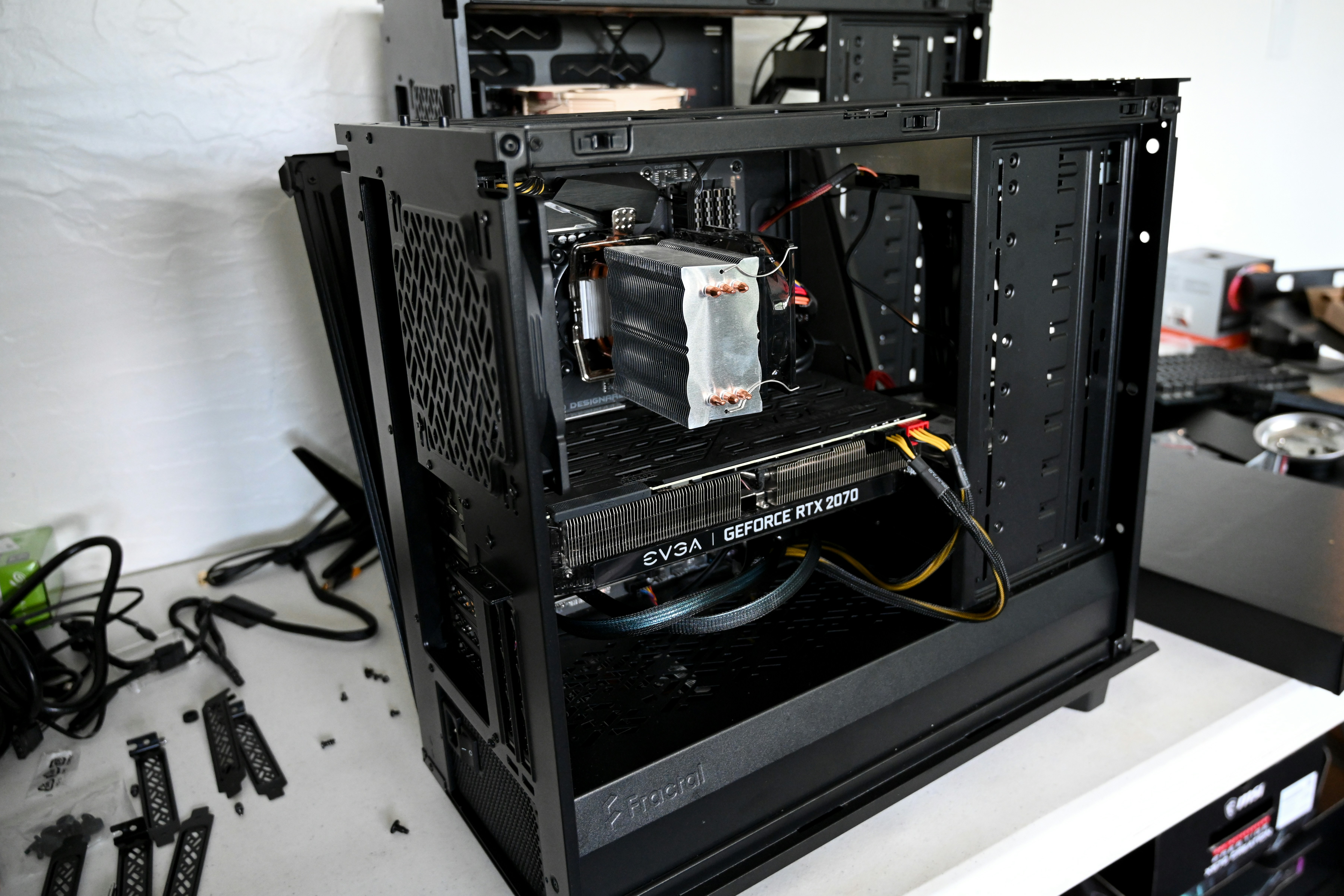
What it does: The graphics card draws everything you see on the screen. For gaming, it’s the most important part in the whole build, and many video editing and 3D apps use it to speed up their work too.
When built-in graphics is enough: For an everyday build, you may not need a graphics card at all. If your processor has built-in graphics, it can handle documents, browsing, video calls and streaming video just fine. That can save a lot of money. Light, older or less demanding games may run too, at lower settings.
What to look for in a graphics card:
- Your monitor’s resolution. Higher resolutions need a more powerful card. Match the card to the screen you’ll actually use.
- Video memory (VRAM). More helps with newer games, higher settings and bigger video and 3D projects.
- Size and power. Check that the card fits in your case and that your power supply has enough wattage and the right connectors.
- Last generation. When new cards come out, the previous ones can be some of the best values around.
Everyday vs. performance: Everyday build: built-in graphics is often all you need. Performance build: for gaming, this is where the biggest share of your budget should go, and it matters for video editing and 3D too. Music production leans much less on the graphics card.
Watch computer deals and gaming deals for graphics cards.
Power supply (PSU)
What it does: The power supply takes power from the wall and feeds it to every part in the computer.
What to look for:
- Enough wattage, plus some room. Add up what your parts need, especially the graphics card, and leave some headroom. The graphics card maker usually lists a recommended power supply size.
- An efficiency rating. Look for an 80 Plus rating, like Bronze or Gold. Higher ratings waste less power as heat.
- A brand you trust. This is not the place to grab a no-name bargain. Trust me on that one. A bad power supply can take other parts down with it.
- The right connectors for your graphics card, especially newer cards.
Everyday vs. performance: An everyday build without a graphics card needs much less power. A performance build needs more, depending on the card.
Find power supplies in computer deals. Right now, for example, there’s the Corsair RM850e (2025) 850W Power Supply and the MSI MAG A850 GL 80 Plus Gold, both sized for performance builds.
Case
What it does: The case holds everything and keeps it cool.
What to look for:
- Motherboard size. Make sure the case supports your board, whether that’s ATX or Micro-ATX.
- Room for your parts. Check the maximum graphics card length and CPU cooler height.
- Airflow. A mesh front and a few included fans keep things cooler and quieter.
- The ports on the front. USB and USB-C on the front are handy.
- Ease of building. Good cable management space makes your first build a lot less frustrating.
Everyday vs. performance: For an everyday build, a smaller case that fits on or under a desk is great. For a performance build, a bit more room helps with bigger graphics cards and better airflow.
Browse computer deals for cases. Right now, for example, there’s the MONTECH X5M Micro ATX Gaming PC Case and the larger MONTECH X5 ATX Mid-Tower Gaming PC Case.
CPU cooler
What it does: The cooler keeps the processor from overheating.
What to look for:
- Whether you need one. Some processors come with a cooler in the box, and many don’t. Check the listing before you buy.
- Socket support. The cooler has to support your processor’s socket.
- Fit. Air coolers can be tall. Check the case’s cooler height limit.
- Air or liquid. A good air cooler is simple and handles most builds. All-in-one liquid coolers can look great but cost more and need a spot in the case for the radiator.
Everyday vs. performance: For an everyday build, the cooler that comes with the processor, if it has one, is usually fine. For a performance build, a good aftermarket air cooler keeps things cooler and quieter through long gaming sessions and renders.
Find coolers in computer deals. Right now, for example, there’s the Cooler Master CM Hyper 212 3DHP aRGB and the Scythe MUGEN6 CPU Cooler.
Operating system
What it does: The operating system is what you actually see and use when the computer turns on.
What to look for:
- Windows runs the widest range of games and software, but you’ll need a license. Budget for it, since a prebuilt computer usually includes one and a home build doesn’t.
- Linux is free and works well for a lot of people, though some games and other software may not run on it.
- The software you need. If your school, your job or your creative work depends on specific programs, make sure they run on the system you choose.
Everyday vs. performance: For an everyday build, pick whatever runs the programs you rely on. For gaming, Windows is still the safest bet for running the most games. For creative work, check that your editing, 3D or music software supports the system you choose.
You’ll also need a USB flash drive to install the operating system. Check accessories deals for those.
Monitor
What it does: It’s the screen, and you’ll look at it every single day.
What to look for:
- Size and resolution that fit your desk and your graphics card.
- Refresh rate. Standard is fine for everyday use. For gaming, a higher refresh rate makes motion look much smoother, as long as your graphics card can keep up.
- The right ports. If you have a graphics card, plug the monitor into the card, not the motherboard.
Everyday vs. performance: A simple 1080p monitor is great for an everyday build. Gaming builds benefit from a higher refresh rate, and stronger graphics cards can make good use of 1440p. For creative work, a higher resolution gives you more room for timelines, tracks and toolbars.
For a deeper look, read monitor buying basics. Then browse computer deals for monitors. Right now, for example, there’s the ASUS 24” Full HD 120Hz IPS for an everyday build, the ASUS TUF Gaming 24” Full HD 240Hz for fast gaming, and the GIGABYTE 27” QHD 1440P 180Hz IPS if you want to step up to 1440p.
Keyboard and mouse
What they do: They’re how you actually use the computer, so comfort matters.
What to look for:
- Comfort first. You’ll use them for hours.
- Wired or wireless. Wireless keeps your desk clean. Wired never needs charging.
- Size. A full-size keyboard has a number pad, which is handy for spreadsheets and number-heavy work. Smaller keyboards leave more room for your mouse.
Everyday vs. performance: For an everyday build, any comfortable, reliable keyboard and mouse will do. For gaming, a mechanical keyboard and a lighter, more responsive mouse can make a difference.
Check accessories deals and gaming deals. Right now, for example, there’s the RK ROYAL KLUDGE S104 Wireless Keyboard and Philips Wireless Mouse for everyday use, and the Redragon M997 Wireless Lightweight Gaming Mouse for gaming.
Wi-Fi (if you need it)
What it does: It gets your computer online without a cable.
What to look for:
- A wired connection if you can. If your computer is near your router, an Ethernet cable is the simplest and most reliable option, and it’s great for gaming.
- A motherboard with Wi-Fi built in. This is the cleanest option. Look for “WiFi” in the board’s name, like the ASUS TUF Gaming board above.
- An add-in card or USB adapter. If your board doesn’t have Wi-Fi, you can add it later. Look for a current Wi-Fi standard, like Wi-Fi 6 or newer.
Everyday vs. performance: Either way, Wi-Fi is about where the computer sits, not what it’s for. For gaming, wired is better if you can manage it.
Check accessories deals for networking gear.
Before you buy: check that it all fits together
Before you check out, run through this list:
- Processor and motherboard use the same socket.
- Memory matches the board (DDR4 or DDR5).
- Motherboard fits the case.
- Graphics card and cooler fit inside the case.
- Power supply has enough wattage and the right connectors.
- Graphics: either the processor has built-in graphics or you have a graphics card.
- Operating system is in the budget.
A few online PC part pickers can check compatibility for you. It’s worth the extra minute, every time.
A quick note on prices
Deals on computer parts change all the time, and the specific items above may sell out, change price or expire by the time you read this. Use them as examples, check the price history, and compare before you buy.
The bottom line
Your first build doesn’t have to be expensive. Or complicated. Figure out what it’s for, put most of your money where it matters most (the graphics card for gaming, the processor and memory for heavy creative work, a solid all-around setup for everyday use), and make sure everything fits together.
When you’re ready, browse the latest deals, and if you spot a great one on PC parts, send it my way.